Pages

Monday, 26 November 2012

How to Unlock Your Huawei USB Modem

For more information please visit: https://infokworld.blogspot.com

Most service providers sell customized huawei modems which they’ve already programmed to work only on their network. You might get a prompt to enter an unlock code if you try to use a sim from another service provider on these USB modems. There are several ways to unlock these huawei modems though.

Some kind person in a web forum might create a topic on this, asking people to drop ther modem’s IMEI number but the best way to do it is DOING IT YOURSELF!

There’s a modem unlock tool in our mobile site

It’s a very effective tool which I’ve used on several occasions and it’s never failed once. All you need to do is to key in your IMEI number and hit “Enter”
You get your unlock code starught up!

Click here to check out this tool.

You can as well unlock it wit Universal Mastercode. This also works for Nokia, LG and some other products apart from Huawei USB modems.

Download Universal Mastercode from Mediafire or Rapidshare.

1. Select Huawei from the tabs

2. Enter your IMEI in the provided space and click calculate

3. Insert an unauthorized sim in your modem and plug it in

4. Enter the unlock code when the prompt message comes up

5. You’re done!

Wednesday, 21 November 2012

How To Manually Configure Nokia Phones

For more information, please visit: http://infokworld.blogspot.com

Sometimes you might need to change your operator default settings and use proxy in order to browse free. Below are carefully illustrated steps you can follow to manually configure your phone. I’ll be using default settings for MTN Nigeria for all examples.

For s40 phones
 
E.g 2600, 2630, 3110c, 5200, 5300,7900, 7610, 7510, 7500, 7390, 7373, 7370, 7310, 7210 7100, 6600flip, 6600slider, 6555, 6500s, 6500, 6301, 6300i, 6300, 6288, 6282,6280, 6275, 6270,6267, 6265, 6234, 6233, 6212, 6133, 6131, 6126, 5610, 5310, 5300, 5220, 5130, 5000, 2700

Press Menu >>> Settings>>> Configuration Settings >>> Personal Configurations >>> Option >>> Add new >>> Web

Account Name: MTN WAP
Homepage: wap.mtnonline.com
Username: web
Password:web verify:web
Use preferred access point: No
Access point settings
Proxy: Enable
Proxy address:10.199.212.2
Proxy port: 8080
Data bearer: Packet data
Bearer settings
Packet data access point:web.gprs.mtnnigeria.net
Network type:IPv4
Authentication type:Normal
Username:web
Password:web

The next is Nokia s60 (symbian)
 
E.G 6110, 3250, 3600 slide,6111, N70, N71,N72, N73, N75,5700, N76, 5070,7900 crystal prism, 7900prism, N77,N78, 2610, N79,5630 xpressmusic, 6500classic, 8800 arte,5500, 6212 classic, 6650,E55, 5310, E50,E51, 8600 luna, 6500 slide,6710 navigator, 3610 fold, 7370,7610 supernova, E60, 3555,7373, N81 8gb, E65,E66, 5300, 6210 navigator,E61, 3110 classic, E62,E63,N81, N82, N95 N958GB

Press Menu >>> Tools >>> Settings >>> Connection >>> Access points >>> Option >>> New Access Point >>> Use Default Settings.

Connection name: MTN WAP
Data bearer: Packet data
Access point name: web.gprs.mtnnigeria.net
Username: web
Prompt password: No
Password: web
Authentication: Normal
Homepage: wap.mtnonline.com
Option>>>Advanced setting
Change only:-
Proxy server address: 10.199.212.2
Proxy port number: 8080

Unlock / Reset Nokia Security Code

For more information, please visit: http://infokworld.blogspot.com
 

If you’ve forgotten your Nokia phone security code, simply follow the following steps to reset or read the unlock code all by yourself. You’ll be needing only:

i. Nokia PC Suite
 
ii. Nemesis Service Suite
 
iii. Phone data cable

TO RESET THE PHONE LOCK BACK TO DEFAULT

1. First the latest version of Install Nokia PC Suite

2. Then install Nemesis Service Suite (NSS)

3. Now connect your mobile phone to your computer with the data cable. If the phone prompts, choose default mode or PC Suite mode but do not open pc suite yet.

4. Next, start Nemesis Service suite (NSS)

5. Select scan for new devices button (on top right corner of NSS)

6. Click on Phone Info button.

7. Now click the Scan button.

8. Under Power Mode, select Local and then click Change. At this point, your Nokia phone should restart, and you should see the text Local mode across your phone screen.

9. Under Production Data Edit, click Read button. The textboxes should now contain values.

10. Check the Enable check box beside Product Code
 
11. Click Write button.

12. Select Tools button on top

13. Click Factory Settings tab

14. Tick Full Factory button and click Reset button.

15. Final step, go back to Phone Info and click Normal then Change.

Now your security code should be 12345.

 
TO READ THE EXISTING UNLOCK CODE

1. Connect your phone in PC Suite mode

2. Open Nemesis Service suite (NSS)

3. Then click on scan for new devices button (top right hand side)

4. Click on phone info button.

5. Now Click on Scan.

6. Select Permanent Memory.

7. Click on Read.

8. It will read the permanent memory file and save it on the disk at following path.
C:\Program Files\NSS\Backup\pm\.pm

9. Open the .pm file using Notepad.

10. Now scroll until field [308], and on the 5th Record (5=) your security code is saved at there.

11. Like 5=31313131310000000000

12. Remove all “3” digit and it will be 31313131310000000000

13. 11111 is your security code.

Alternatively, you can read the PM file with Nokia BB5 PM Security Code.

How to Use Your Mobile Phone as Webcam

For more information, please visit: http://infokworld.blogspot.com


If you happen to be stuck with a personal computer with no webcam and wish to have video chat with your friends on Skype and MSN every once in a while, then this application is just for you. Smartcam turns your mobile phone to a webcam easily. It doesn’t matter whether all you have is a nokia or sony ericsson java phone, a symbian third edition phone or a smartphone running on Android OS. You need to install the Windows executable file on your computer and the install the other application on your phone. You need to select the one compatible with your phone operating system.

In the symbian app, there are three connection types:

* Bluetooth
* USB Cable
* WiFi

I’ve only actually tried the bluetooth connection and it worked perfectly well.

The J2ME App only has bluetooth as the only available connection type.
 
I haven’t tested the webcam application with any Android smartphone but I guess it should work too.

To turn your phone to a webcam, follow the steps below:

1. Run the .exe file on your pc and then run .sis, .jar or .apk file on your mobile phone.

Download the PC software
 

Download a compatible version for your phone operating system


2. Now connect your mobile to pc using Bluetooth.
 
You might as well try other connection modes but as WiFi works on a friend’s Nokia 5800

3. Run the Smartcam program from the desktop.

4. Open Smartcam in your cell phone as well.

5. Now you’re running the application both on your phone and pc, you will have to pair your mobile to your pc with the bluetooth as a meddium of connection.

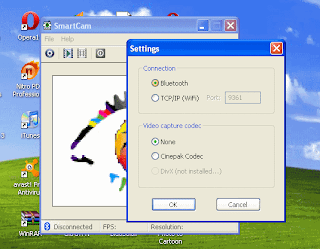
6. On the PC program, go to File > Settings and select bluetooth as your mode of connection.


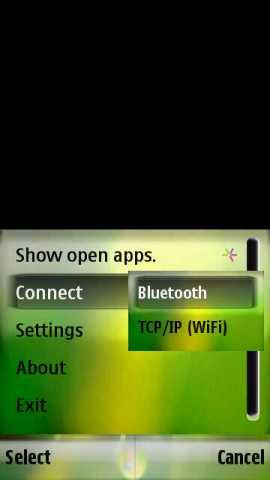
7. In your cell phone select connect and choose the computer device.


8. If you’ve successfully paired your phone with the computer, you’ll see through cell phone’s camera in your computer.

9. Just run your IM application and the smartcam program will be detected as a webcam.

Capture Screenshot on Your Symbian phone

 For more information please visit: https://infokworld.blogspot.com

Screenshot for Symbian OS is a FREE program to take screenshot on your Symbian OS mobile phones (UIQ or S60). You can capture screenshot and save it to a file in JPEG, PNG, BMP or MBM format. The screenshot can be sent directly to a PC via Bluetooth or infrared and another mobile phone. Furthermore, you can customize the shortcut key, file name and delay of capturing. It supports continuous mode that allows you to capture screenshot every a few seconds.


Supported devices: Nokia 3250, N71, N73, N75, N76, N80, N81, N82, N91, N92, N93, N95, E50, E51, E60, E61, E61i, E62, E65, E70, E90.


Supported devices: Nokia 3230, 3600, 3620, 3650, 3660, 6260, 6600, 6630, 6670, 6680, 6681, 6682, 7610, 7650, N70, N72, N90, N-Gage, N-Gage QD.

S40 Prov File / Proxy Configuration File

For more information, please visit: http://infokworld.blogspot.com

A prov file is a proxy configuration file written in xml format which is an extension of Nokia s40 phones proxy settings. It contains the IP address, proxy port number, the access point name, username and password of the network operator.

Some internet java applications never seem to connect on certain Nokia S40 phones and this is where prov file/proxy file comes in. It enables such application to connect to the access point.

When a prov file is sent to a Nokia s40 phone, it doesn’t get saved in the file manager like other files such as media and application, rather, it appears as a configuration settings the way our local network providers settings would do if we request provisioninal settings. For example, when an MTN Nigeria subscriber sends SETTINGS to 3888, MTN will automatically send a prov file to the phone making it appear like a configuration settings.


When a prov is sent to an s40 phone, this is where it has effect menu>>settings>>config settings>>default config settings and prefered access point settings

For it to have this effect, you don’t sent it with a usb cable or through mms, you send it via a wireless connection e.g, infrared or bluetooth.

When the prov file has been sent, locate where it’ll have the effect as was directed above, activate the new settings, go back once and locate Activate default in all app. Select it and head to prefered access point settings where you’ll choose the appropriate access point for your default settings. (though some settings’ll automatically choose it’s access point, depending on the compilation)

There are different ways to create a procv file. You can create it online at our mobile site


You can as well create it offline on your computer by using an application called Proxy File Generator

"Unable to Send Protected Object" Problem on S60V3

For more information, please visit: http://infokworld.blogspot.com

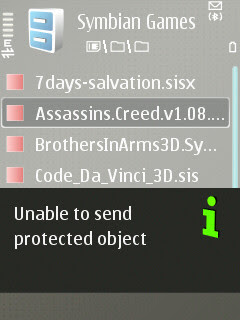
“Unable to send protected object”

This is the most common error message you get when you try to send symbian and java games or applicatioms from your Series 60 smartphone. Normally you can’t send games and applicatios directly from your phone’s file manager except with file system applications like Xplore. But in this this post, I’m not going to talk about using Xplore, I’m only gonna talk about how to send these so called protected items directly to another phone via bluetooth or infra-red.

 
Locate the file you want to send from your file manager and follow these steps:

1.Change the extension of the protected file (majorly games and applications installation files) by renaming it to ‘mp3′ eg: ‘Opera6HandlerUI.jar’ to ‘Opera6HandlerUI.mp3′

2.Select ‘send via bluetooth’ and transfer the file to the other phone.

3.Open the bluetooth message and it will open using the media player.It may say “unable to play media clip”, but it is possible to save the file to a location in your phone.You can save it either in the memory card or in the phone memory.

4.Then go to the directory you saved the file in and rename it, changing the extension back to the original one. eg: ‘Opera6HandlerUI.mp3′ to ‘Opera6HandlerUI.jar’

5.Then run the application and it will work perfectly.

*However certain phones are unable to open the bluetooth message and save it, for those users it is advisable to download and reinstall real player, which enables the phone to open and save the bluetooth message.